Flutter Canvas 그리기 예제 - (7) Node 사이 Edge(Arrow) 그리기
28 Dec 2021 | FlutterNode 사이 Edge 그리기
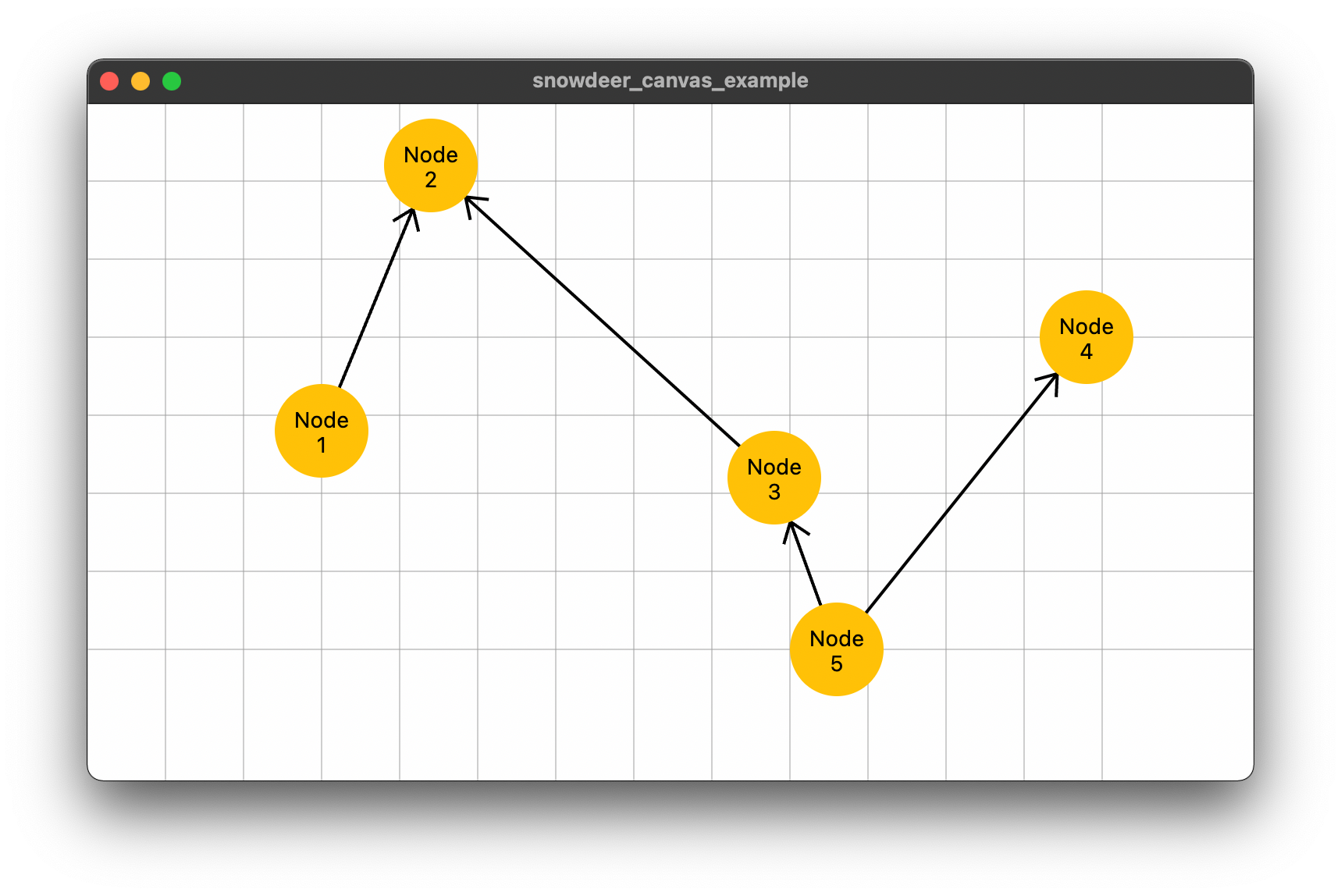
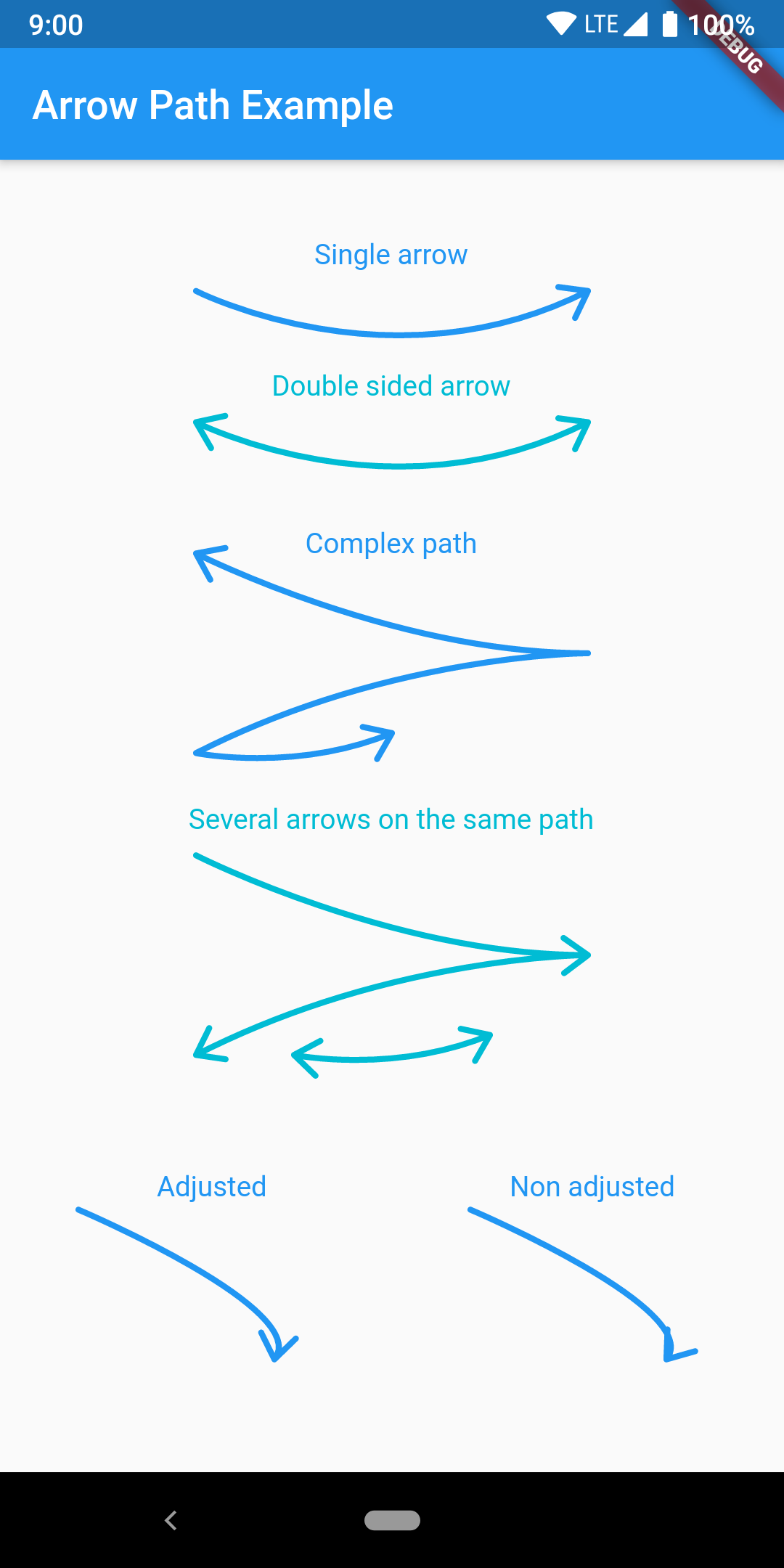
사실 일일이 직접 그려도 되지만, 화살표 끝부분 처리가 너무 귀찮아서 오픈 소스를 활용했습니다. 활용한 오픈소스는 arrow_path 2.0.0입니다.
아래 그림과 다양한 모양의 화살표를 만들 수 있습니다. 하지만, 어차피 경로(Path)는 직접 구해야 합니다.
pubspec.yaml
아래와 같이 pubspec.yaml 파일의 dev_dependencies 항목 아래에 arrow_path: ^2.0.0를 추가해줍니다.
그리고 flutter pub get 명령어를 실행해줍니다.
dev_dependencies:
  flutter_test:
    sdk: flutter

  # The "flutter_lints" package below contains a set of recommended lints to
  # encourage good coding practices. The lint set provided by the package is
  # activated in the `analysis_options.yaml` file located at the root of your
  # package. See that file for information about deactivating specific lint
  # rules and activating additional ones.
  flutter_lints: ^1.0.0
  arrow_path: ^2.0.0
node.dart
기존 코드와 거의 같습니다. id를 int 형으로 변경하긴 했는데, String으로 해도 코드에 큰 차이가 없습니다.
class Node {
  int id;
  String name;
  double x;
  double y;

  Node(this.id, this.name, this.x, this.y);
}
edge.dart
class Edge {
  int fromId;
  int toId;

  Edge(this.fromId, this.toId);
}
draggable_painter.dart
import 'dart:math';

import 'package:arrow_path/arrow_path.dart';
import 'package:flutter/material.dart';

import 'edge.dart';
import 'node.dart';

class DraggablePainter extends CustomPainter {
  static const gridWidth = 50.0;
  static const gridHeight = 50.0;

  var _width = 0.0;
  var _height = 0.0;

  final double offsetX;
  final double offsetY;
  final List<Node> nodeList;
  final List<Edge> edgeList;

  final radius = 30.0;

  DraggablePainter(this.nodeList, this.edgeList, this.offsetX, this.offsetY);

  void _drawBackground(Canvas canvas) {
    var paint = Paint()
      ..style = PaintingStyle.fill
      ..color = Colors.white70
      ..isAntiAlias = true;

    Rect rect = Rect.fromLTWH(0, 0, _width, _height);
    canvas.drawRect(rect, paint);
  }

  void _drawGrid(Canvas canvas) {
    var paint = Paint()
      ..style = PaintingStyle.stroke
      ..color = Colors.grey
      ..isAntiAlias = true;

    final gridRect = Rect.fromLTWH(
        offsetX % gridWidth - gridWidth,
        offsetY % gridHeight - gridHeight,
        _width + gridWidth,
        _height + gridHeight);

    final rows = _height / gridHeight;
    final cols = _width / gridWidth;

    for (int r = -1; r <= rows; r++) {
      final y = r * gridHeight + gridRect.top;
      final p1 = Offset(gridRect.left, y);
      final p2 = Offset(gridRect.right, y);

      canvas.drawLine(p1, p2, paint);
    }

    for (int c = -1; c <= cols; c++) {
      final x = c * gridWidth + gridRect.left;
      final p1 = Offset(x, gridRect.top);
      final p2 = Offset(x, gridRect.bottom);

      canvas.drawLine(p1, p2, paint);
    }
  }

  Offset _getCenterPosOfNode(nodeId) {
    for (final node in nodeList) {
      if (nodeId == node.id) {
        return Offset(node.x, node.y);
      }
    }
    return null;
  }

  void _drawEdges(Canvas canvas) {
    final paint = Paint()
      ..style = PaintingStyle.stroke
      ..color = Colors.black
      ..strokeWidth = 2
      ..isAntiAlias = true;

    for (final edge in edgeList) {
      final fromPos = _getCenterPosOfNode(edge.fromId);
      final toPos = _getCenterPosOfNode(edge.toId);

      if ((fromPos != null) && (toPos != null)) {
        final distance =
            Offset(toPos.dx - fromPos.dx, toPos.dy - fromPos.dy).distance -
                radius;
        final theta = atan2((toPos.dy - fromPos.dy), (toPos.dx - fromPos.dx));
        final targetX = fromPos.dx + distance * cos(theta);
        final targetY = fromPos.dy + distance * sin(theta);

        var path = Path();
        path.moveTo(fromPos.dx, fromPos.dy);
        path.lineTo(targetX, targetY);
        path = ArrowPath.make(path: path);
        canvas.drawPath(path, paint);
      }
    }
  }

  void _drawNodes(Canvas canvas) {
    var paint = Paint()
      ..style = PaintingStyle.fill
      ..color = Colors.amber
      ..isAntiAlias = true;

    const textStyle = TextStyle(
      color: Colors.black,
      fontSize: 14,
    );

    for (int i = 0; i < nodeList.length; i++) {
      final c = Offset(nodeList[i].x, nodeList[i].y);
      canvas.drawCircle(c, radius, paint);
      _drawText(
          canvas, nodeList[i].x, nodeList[i].y, nodeList[i].name, textStyle);
    }
  }

  void _drawText(Canvas canvas, centerX, centerY, text, style) {
    final textSpan = TextSpan(
      text: text,
      style: style,
    );

    final textPainter = TextPainter()
      ..text = textSpan
      ..textDirection = TextDirection.ltr
      ..textAlign = TextAlign.center
      ..layout();

    final xCenter = (centerX - textPainter.width / 2);
    final yCenter = (centerY - textPainter.height / 2);
    final offset = Offset(xCenter, yCenter);

    textPainter.paint(canvas, offset);
  }

  void _drawCanvas(Canvas canvas) {
    _drawBackground(canvas);
    _drawGrid(canvas);

    canvas.save();
    canvas.translate(offsetX, offsetY);

    _drawEdges(canvas);
    _drawNodes(canvas);

    canvas.restore();
  }

  @override
  void paint(Canvas canvas, Size size) {
    _width = size.width;
    _height = size.height;

    _drawCanvas(canvas);
  }

  @override
  bool shouldRepaint(CustomPainter oldDelegate) => true;
}
draggable_canvas.dart
import 'package:flutter/material.dart';

import 'draggable_painter.dart';
import 'edge.dart';
import 'node.dart';

class DraggableObjectPage extends StatefulWidget {
  const DraggableObjectPage({Key key}) : super(key: key);

  @override
  State createState() => DraggableObjectPageState();
}

class DraggableObjectPageState extends State<DraggableObjectPage> {
  final List<Node> nodeList = List.empty(growable: true);
  final List<Edge> edgeList = List.empty(growable: true);

  var offsetX = 0.0;
  var offsetY = 0.0;

  var preX = 0.0;
  var preY = 0.0;

  Node currentNode;

  DraggableObjectPageState() {
    initNodes();
    initEdges();
  }

  void initNodes() {
    nodeList.clear();
    nodeList.add(Node(1, "Node\n1", 150.0, 210.0));
    nodeList.add(Node(2, "Node\n2", 220.0, 40.0));
    nodeList.add(Node(3, "Node\n3", 440.0, 240.0));
    nodeList.add(Node(4, "Node\n4", 640.0, 150.0));
    nodeList.add(Node(5, "Node\n5", 480.0, 350.0));
  }

  void initEdges() {
    edgeList.clear();
    edgeList.add(Edge(1, 2));
    edgeList.add(Edge(3, 2));
    edgeList.add(Edge(5, 3));
    edgeList.add(Edge(5, 4));
  }

  Node getNode(x, y) {
    const radius = 30.0;
    for (final node in nodeList) {
      final c = Offset(node.x - x + offsetX, node.y - y + offsetY);
      if (c.distance <= radius) {
        return node;
      }
    }
    return null;
  }

  void _handlePanDown(details) {
    final x = details.localPosition.dx;
    final y = details.localPosition.dy;

    final node = getNode(x, y);
    if (node != null) {
      currentNode = node;
    } else {
      currentNode = null;
    }

    preX = x;
    preY = y;
  }

  void _handlePanUpdate(details) {
    final dx = details.localPosition.dx - preX;
    final dy = details.localPosition.dy - preY;

    if (currentNode != null) {
      setState(() {
        currentNode.x = currentNode.x + dx;
        currentNode.y = currentNode.y + dy;
      });
    } else {
      setState(() {
        offsetX = offsetX + dx;
        offsetY = offsetY + dy;
      });
    }

    preX = details.localPosition.dx;
    preY = details.localPosition.dy;
  }

  void _handleLongPressDown(details) {}

  void _handleLongPressMoveUpdate(details) {}

  @override
  Widget build(BuildContext context) {
    return Scaffold(
      body: GestureDetector(
        onPanDown: _handlePanDown,
        onPanUpdate: _handlePanUpdate,
        onLongPressDown: _handleLongPressDown,
        onLongPressMoveUpdate: _handleLongPressMoveUpdate,
        child: CustomPaint(
          child: Container(),
          painter: DraggablePainter(nodeList, edgeList, offsetX, offsetY),
        ),
      ),
    );
  }
}