Pixi.js Viewport 상에서의 Event
19 Apr 2022 | javascript html5Pixi.js Viewport 상에서의 Event
pixi-viewport라는 유틸리티를 이용해서 구현한 예제입니다.
package.json
아래와 같이 모듈을 추가해주면 됩니다.
...

"dependencies": {
  "core-js": "^3.8.3",
  "pixi-viewport": "^4.34.4",
  "pixi.js-legacy": "^6.3.0",
  "vue": "^3.2.13"
},

...
PixiView.vue
<template>
  <div id="container">
    <div id="pixi-canvas"></div>
  </div>
</template>

<script>
import "./js/pixi-app";
import { PixiApp } from "./js/pixi-app";
export default {
  mounted() {
    this.createPixiApp();
  },
  methods: {
    createPixiApp() {
      const app = new PixiApp(800, 800);
      const canvas = document.getElementById("pixi-canvas");
      canvas.appendChild(app.view);
      console.log(`window size(${window.innerWidth}, ${window.innerHeight})`);
      console.log(`app size(${app.view.width}, ${app.view.height})`);
    },
  },
};
</script>

<style>
#container {
  display: block;
  width: 100vw;
  height: 100vh;
  background: whitesmoke;
}
#pixi-canvas {
  display: block;
  margin: 20px;
}
</style>
pixp-app.js
import * as PIXI from "pixi.js-legacy";
import { Viewport } from "pixi-viewport";

class PixiApp extends PIXI.Application {
  constructor(width, height) {
    super({
      width: width,
      height: height,
      backgroundColor: 0xffebee,
      antialias: true,
    });

    const viewport = new Viewport({
      screenWidth: width,
      screenHeight: height,
      worldWidth: width * 2,
      worldHeight: height * 2,

      interaction: this.renderer.plugins.interaction, // the interaction module is important for wheel to work properly when renderer.view is placed or scaled
    });

    this.stage.addChild(viewport);

    const rect = this.#createRect(100, 100);
    viewport.addChild(rect);
    rect.interactive = true;
    rect.on("pointerdown", (e) => {
      console.log(`rect DOWN (${e.data.global.x}, ${e.data.global.y})`); // Viewport 좌표
    });

    const grid = this.#createGrid();
    viewport.addChild(grid);

    viewport.drag().pinch().wheel().decelerate();

    viewport.on("pointerdown", (e) => {
      console.log(`point DOWN (${e.data.global.x}, ${e.data.global.y})`); // Viewport 좌표
    });
  }

  #createRect(centerX, centerY, width = 100, height = 100) {
    const rect = new PIXI.Graphics();
    rect.beginFill(0xff8080);
    rect.drawRect(0, 0, width, height);
    rect.pivot.set(width / 2, height / 2);
    rect.position.set(centerX, centerY);
    rect.endFill();

    return rect;
  }

  #createGrid() {
    const grid = new PIXI.Graphics();
    grid.lineStyle(2, 0xf06292);
    grid.moveTo(-2000, 0);
    grid.lineTo(2000, 0);
    grid.moveTo(0, -2000);
    grid.lineTo(0, 2000);
    grid.lineStyle(1, 0x000000);
    for (let i = 1; i < 5; i++) {
      grid.moveTo(i * 400, -2000);
      grid.lineTo(i * 400, 2000);
      grid.moveTo(-2000, i * 400);
      grid.lineTo(2000, i * 400);
    }

    return grid;
  }
}

export { PixiApp };
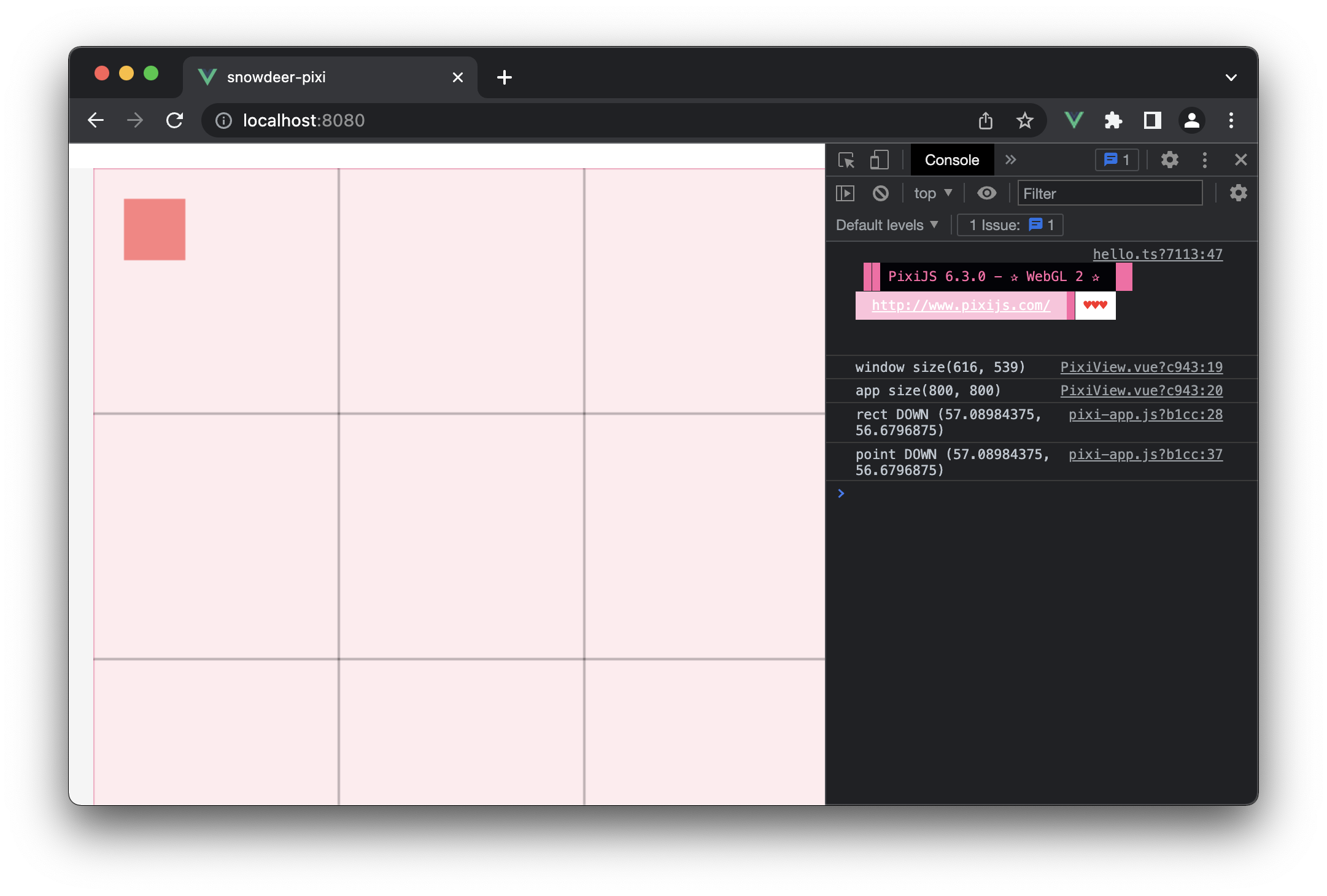
실행화면